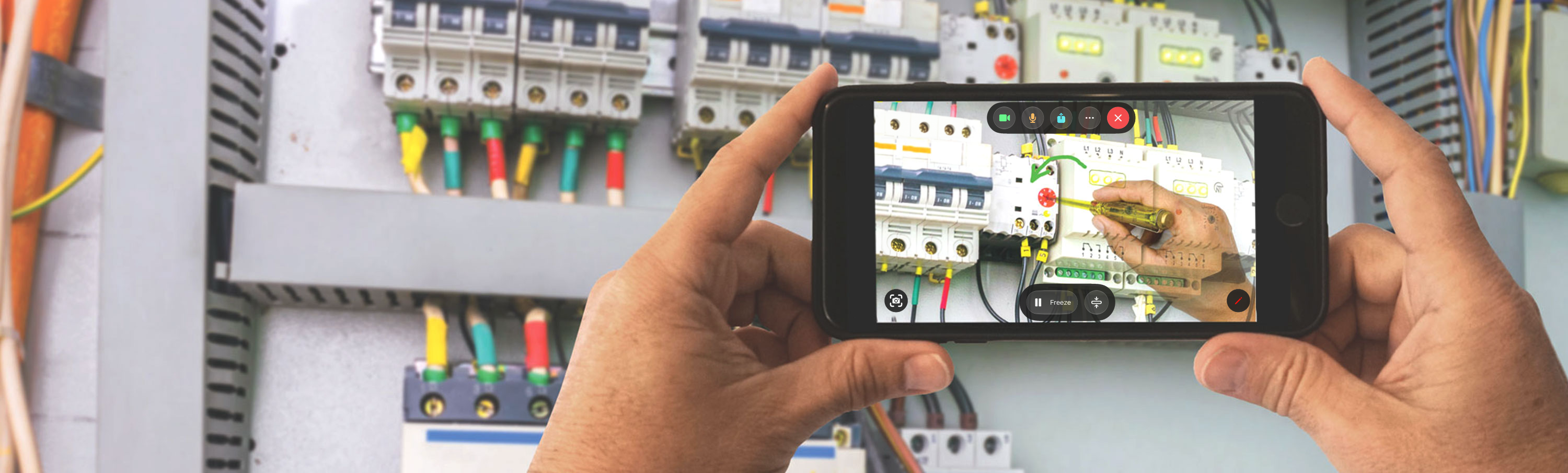
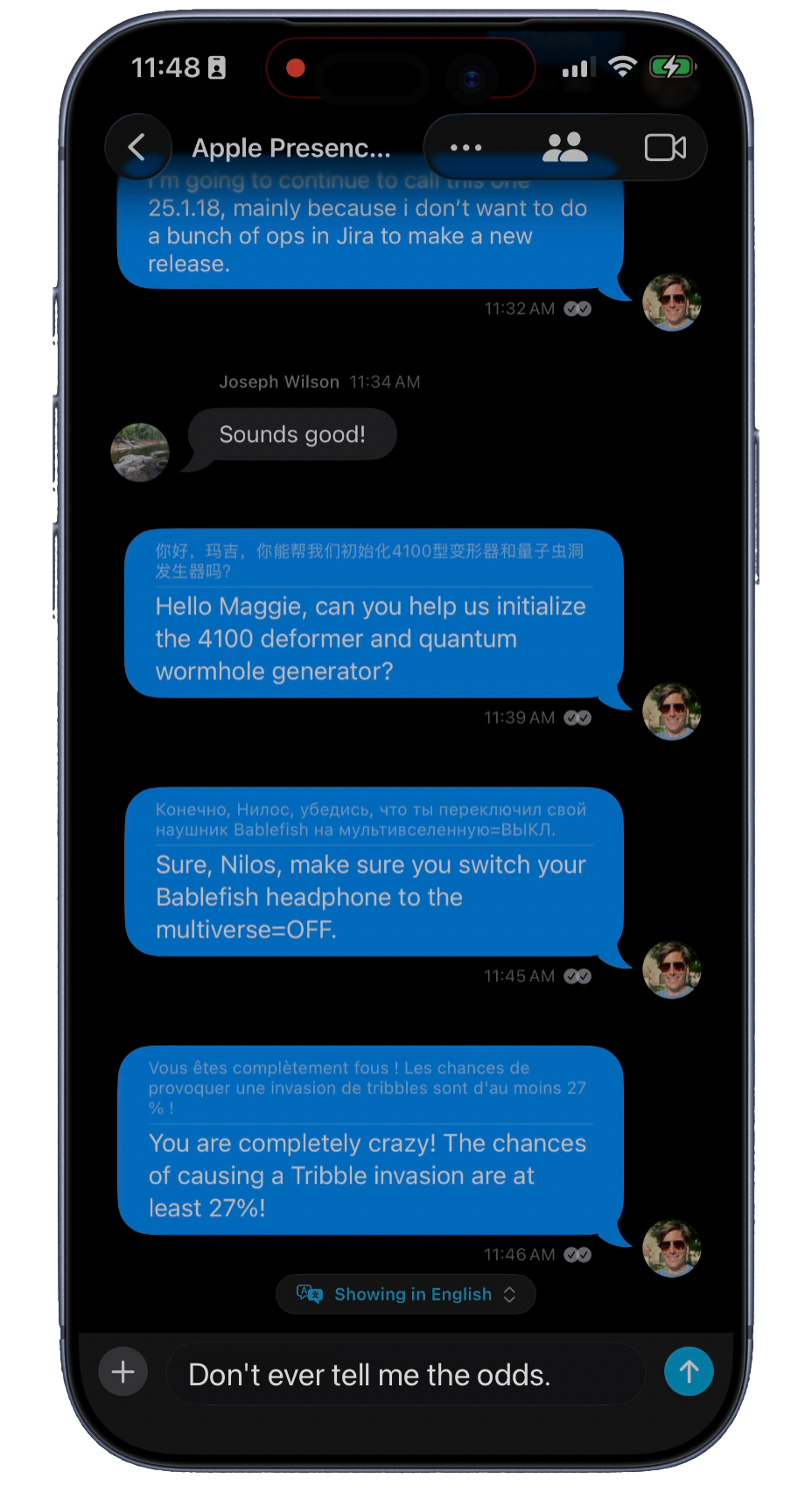
iPhone. The Thread in a pocket. Messages, the live view, and what they tried stay with the work.

Product
Help Lightning brings experts, field teams, and customers into one Help Thread — live video, chat, Procedures, and AI-powered tools — to solve physical problems together and keep a record of how it was done.
Live Video Guidance
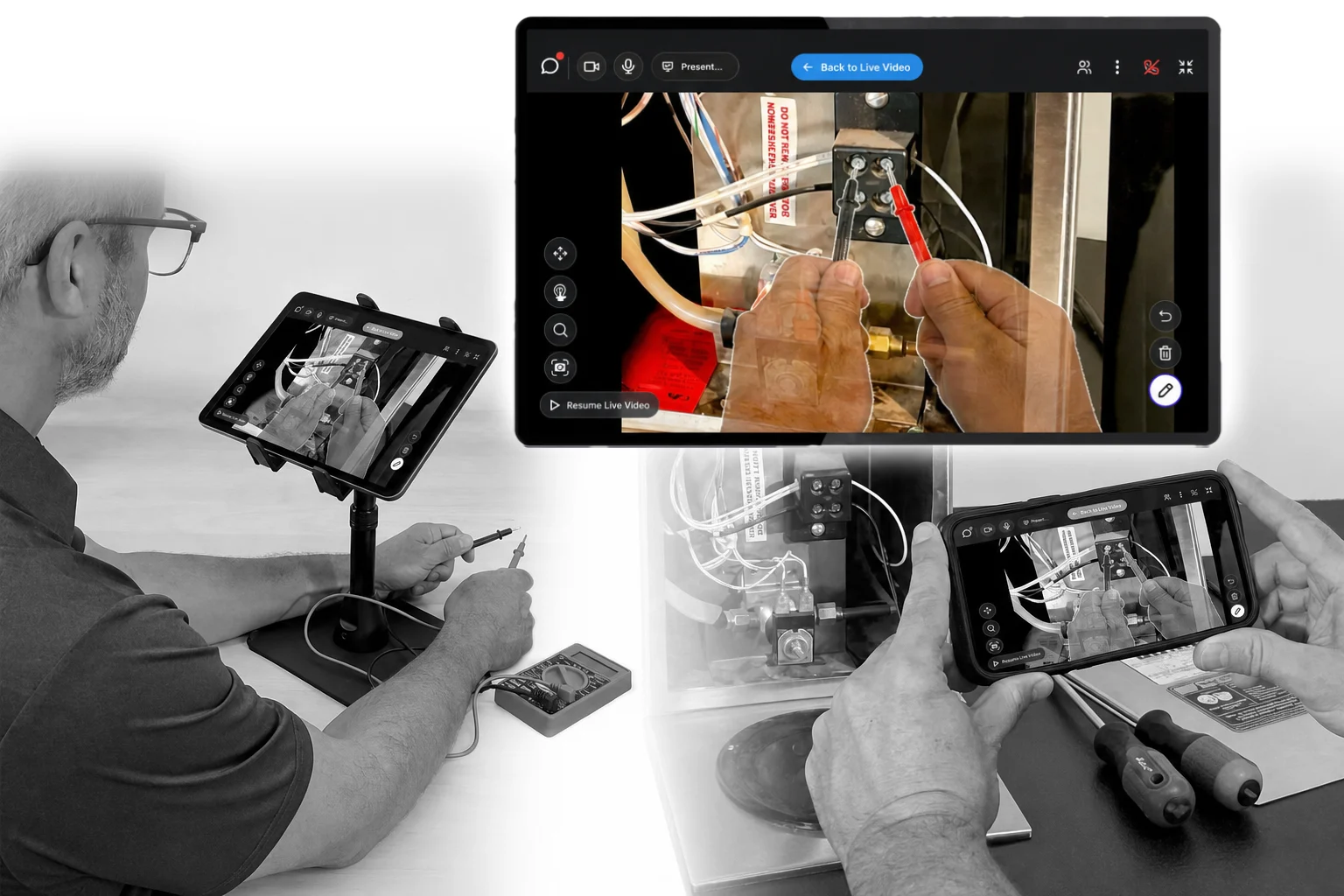
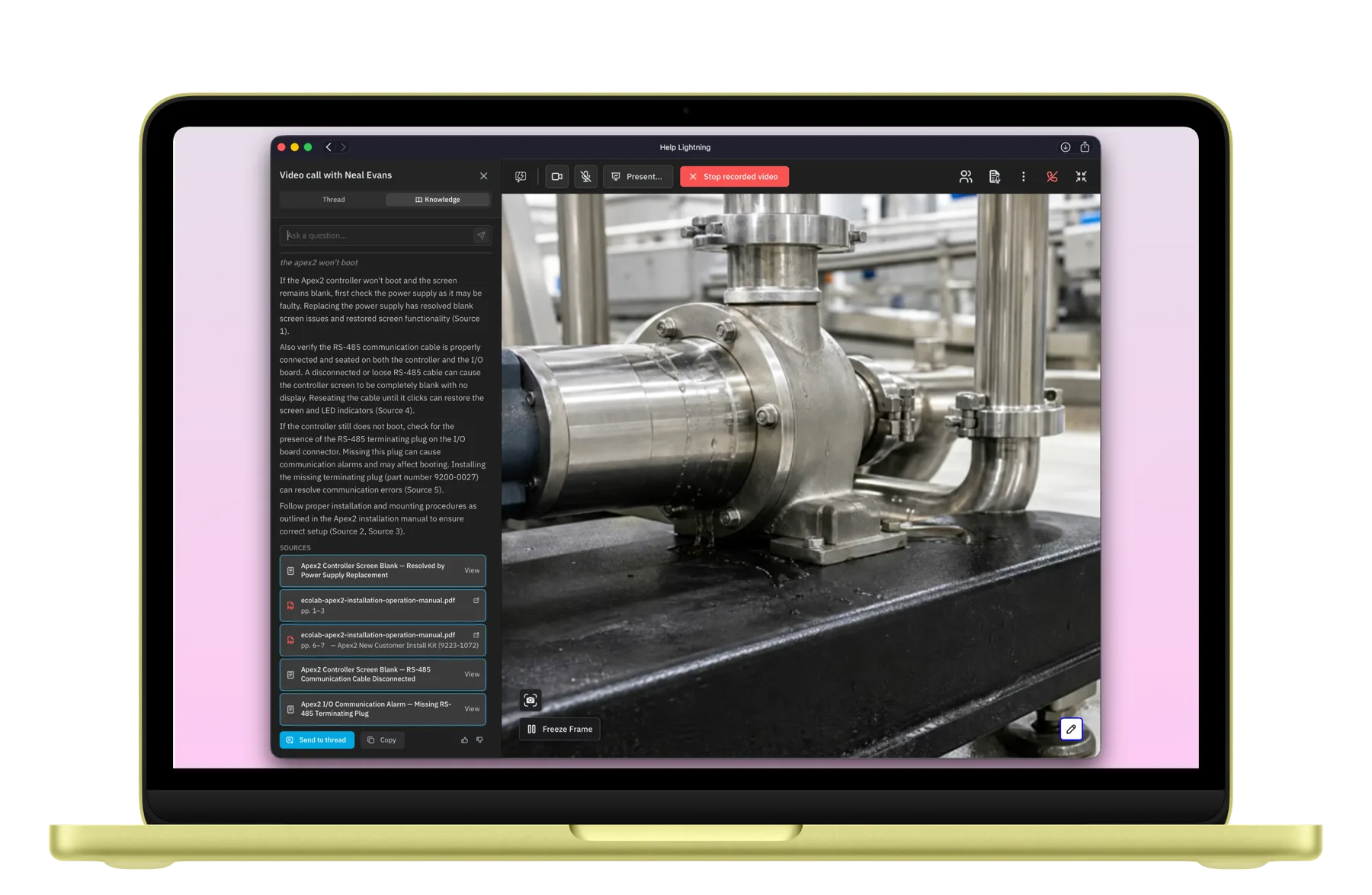
Video sessions enable real-time, interactive support using Merged Reality to overlay hands, tools, annotations, images, or curated instructions.
Purpose-built for support; it fits into your field service workflows.
Simple but powerful controls allow agents, technicians, and customers to collaborate.
Live annotations, Merged Reality overlays, freeze-frame, zoom, and recording — everything you need in the video session to provide remote guidance.
Help Threads
Chat, video, and guided procedures stay in one secure channel between customers, technicians, and support teams.
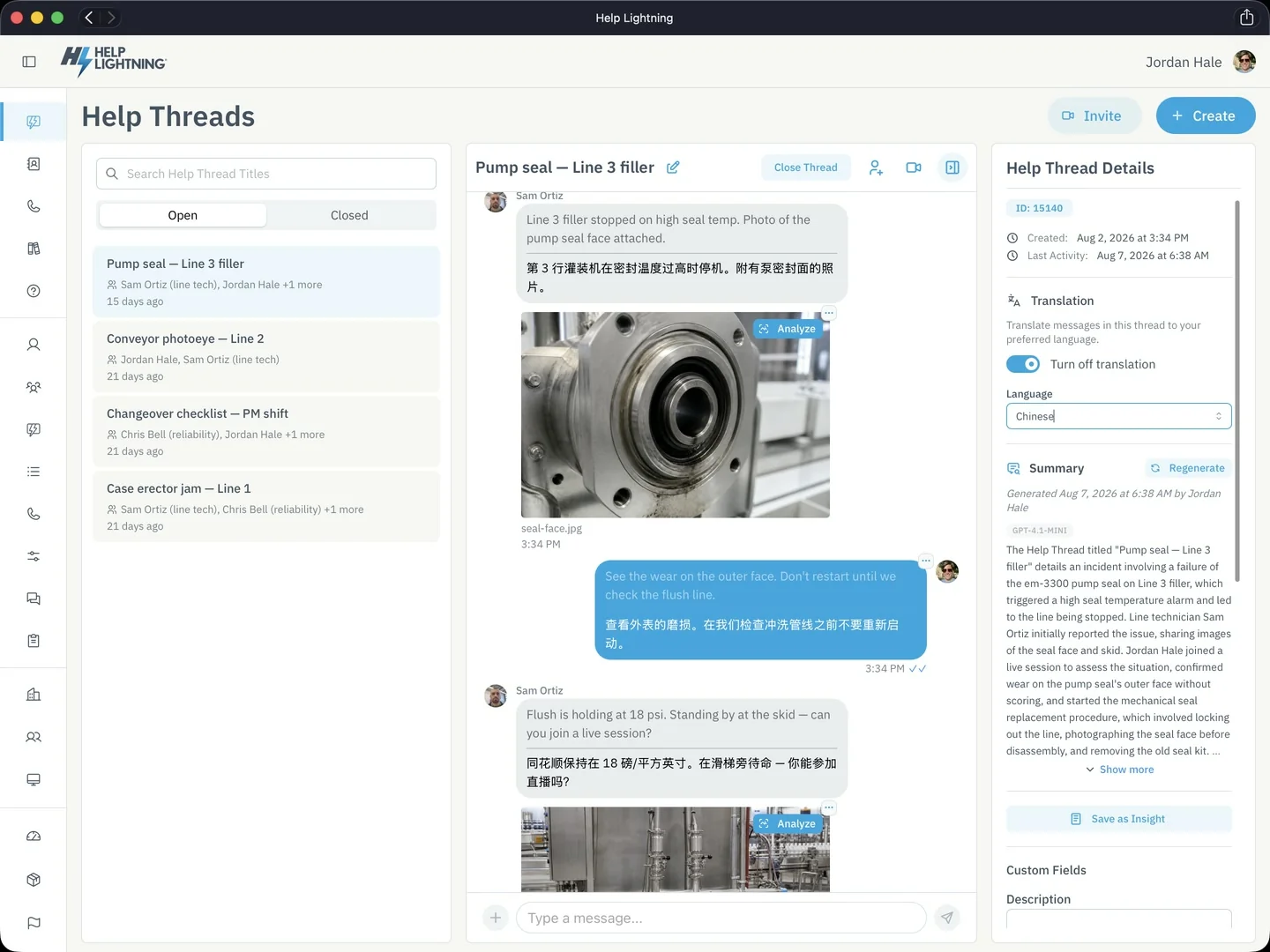
Help Threads can be used by internal teams to collaborate with the right experts at the right time, or with customers outside your organization to chat, share images, videos, and documentation with no app download required.
Teams often patch together consumer-grade tools to solve problems remotely. Help Threads bring that work into one professional interface, governed by the enterprise.
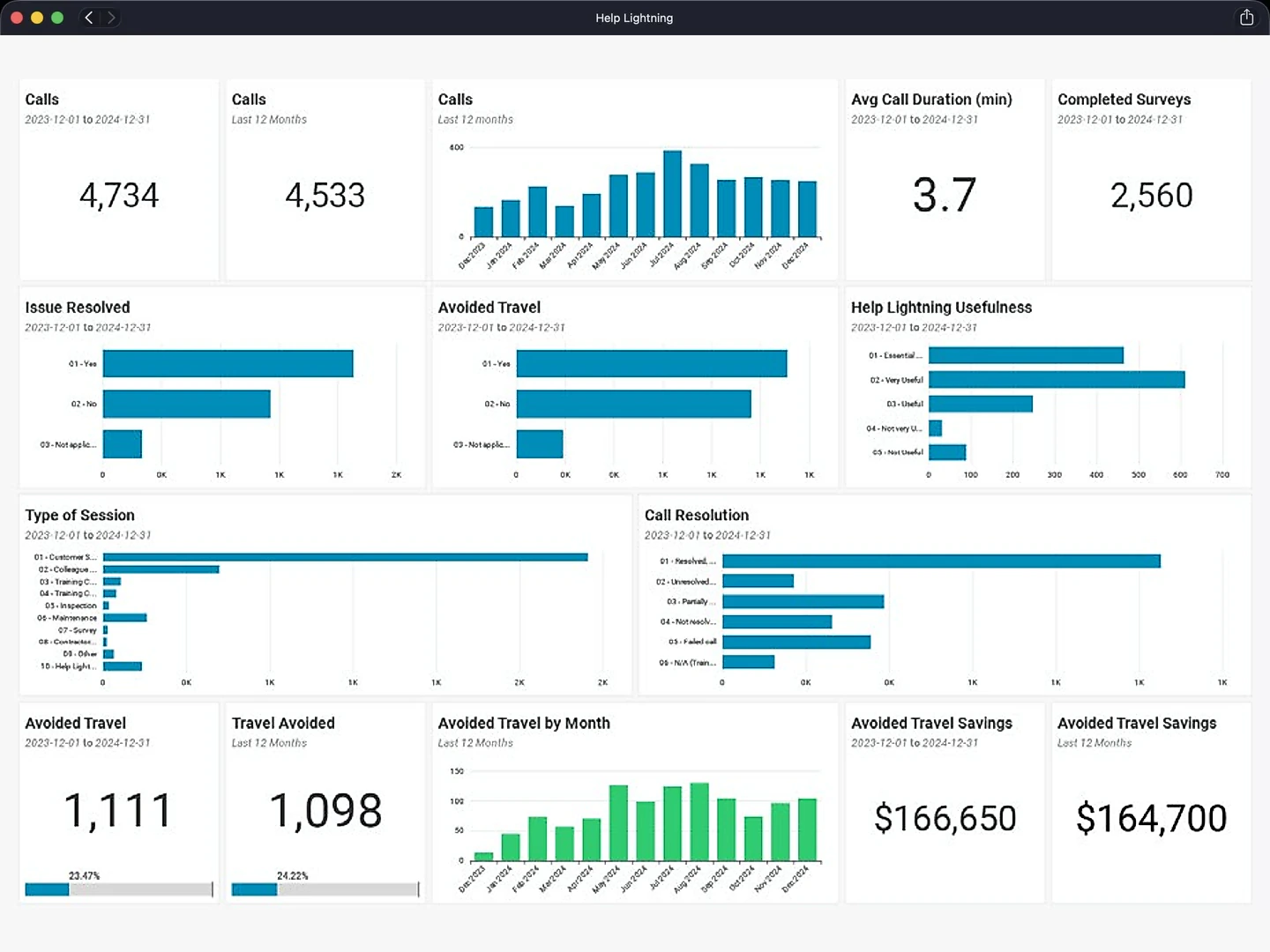
Help Threads track outcomes so organizations can visualize and report on support metrics in real time, and measure how much the team uses it, who adopts it, and what it returns.
Procedures
Step-by-step work instructions anyone in the field can perform, on any device. Procedures turn paper checklists and team knowledge into a guided digital experience that captures photos, videos, signatures, and structured data at every step.
Everyone using a procedure follows the same proven steps in the same order.
Every step, photo, video, and reading is captured as the work happens.
The knowledge that used to live in one expert's head gets written into a Procedure once and reused.
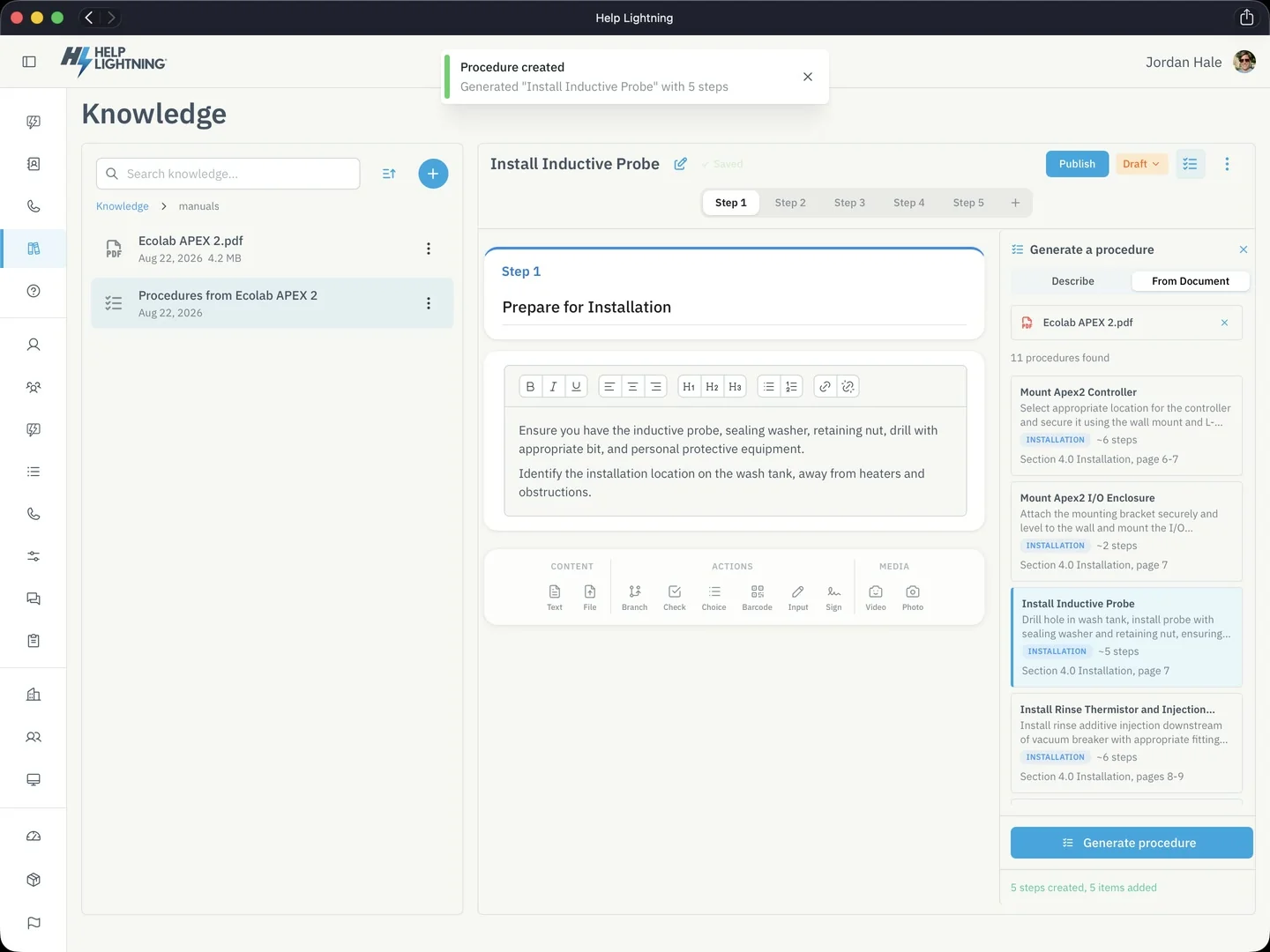
Get it right the first time. Tools that summarize conversations, analyze photos, review documents, find answers, draft Procedures, and turn Help Threads into reusable knowledge.
Nothing is used until a person reviews it.
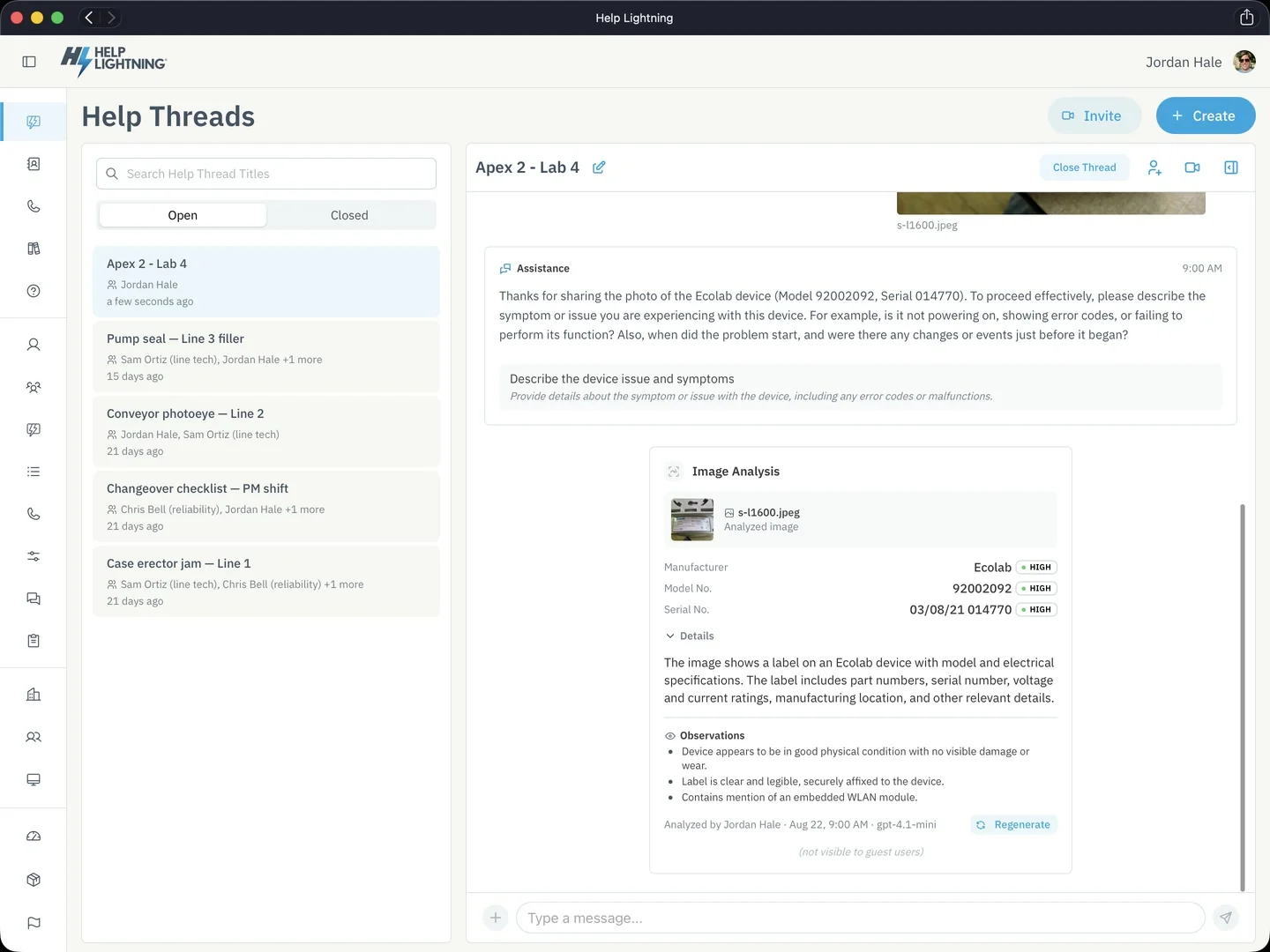
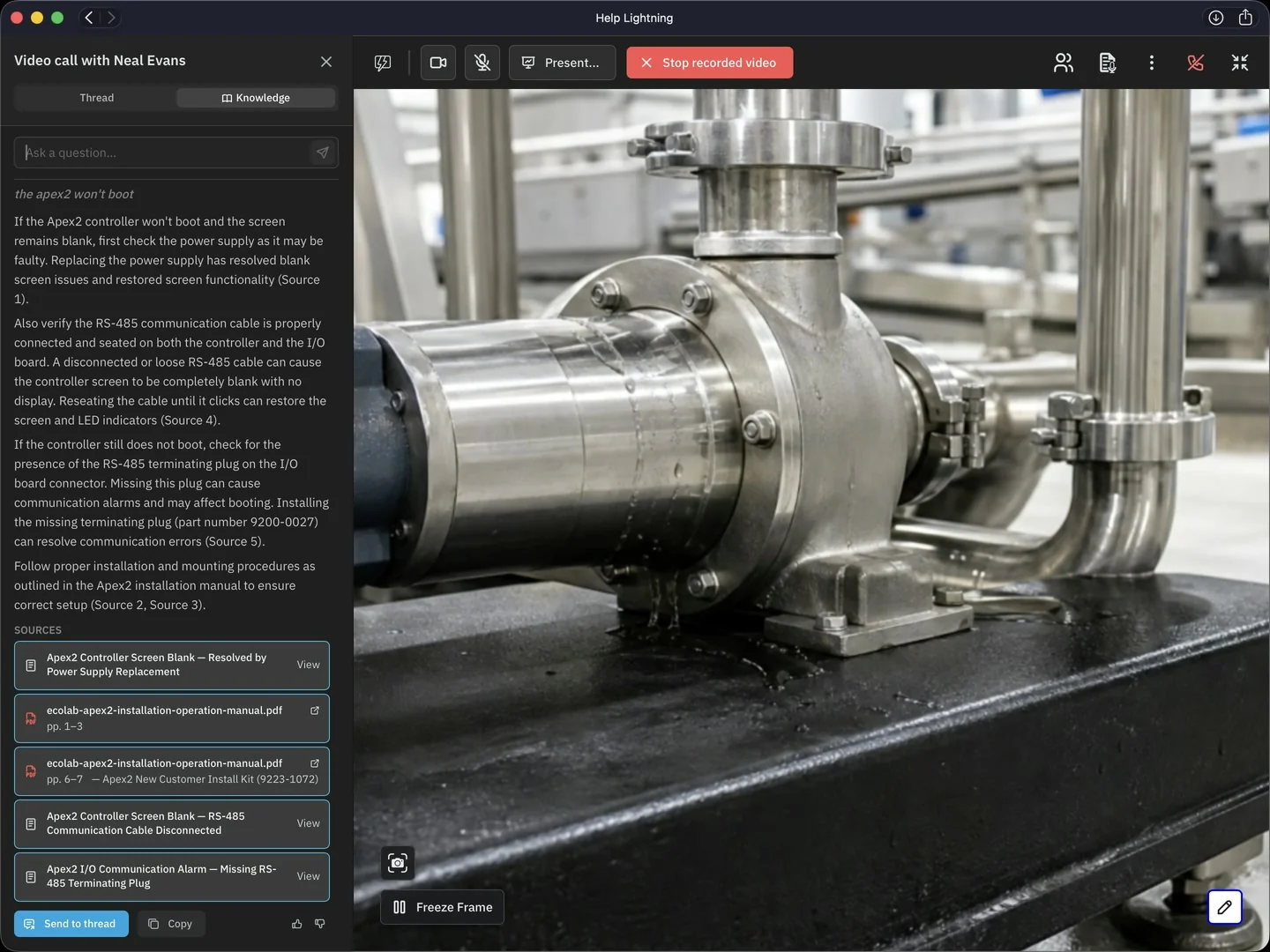
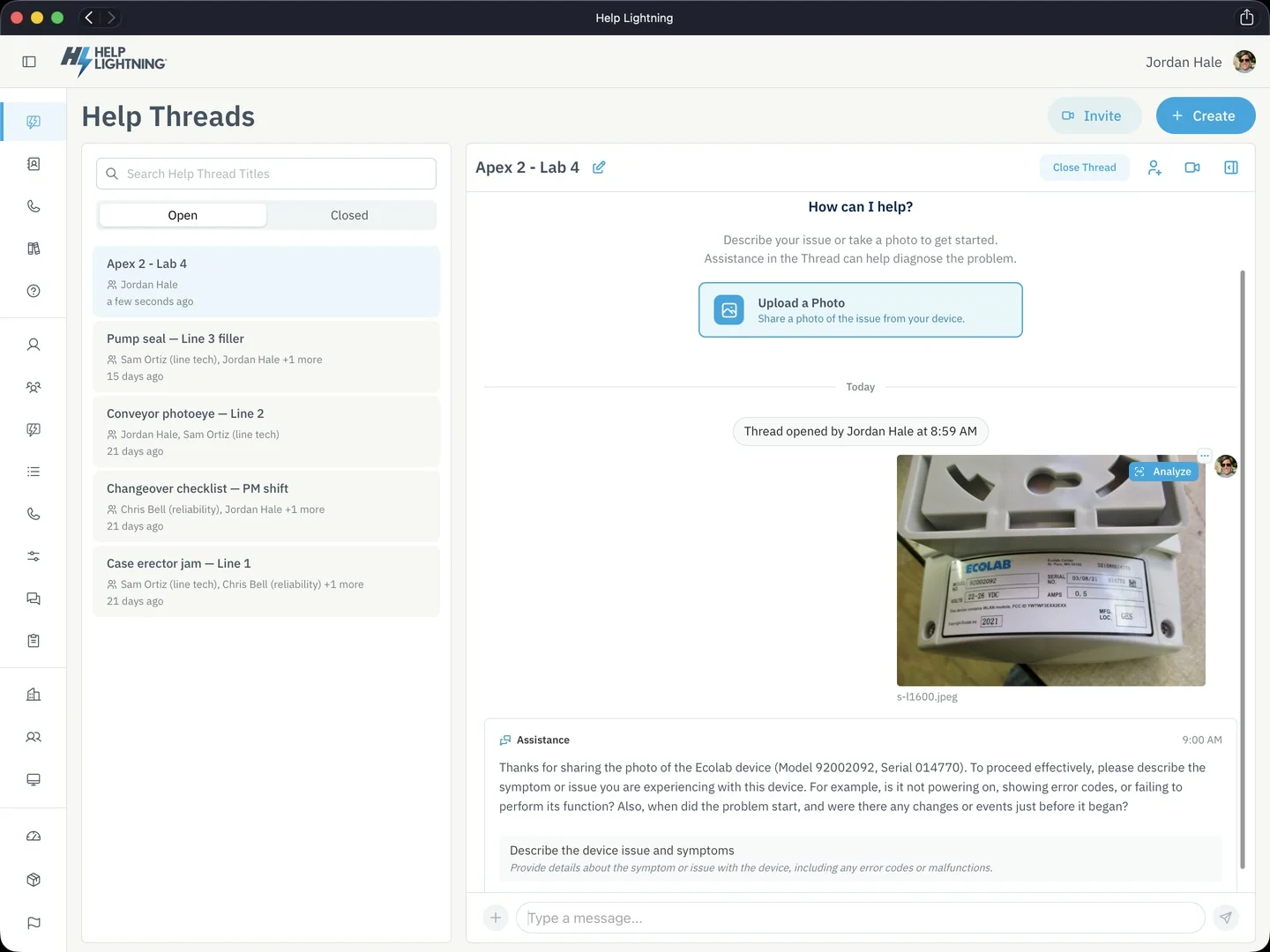
Analyze photo. Point a camera at a nameplate or a damaged part and pull the model number, serial number, and any visible safety notices. The results go to the expert first, who chooses whether to share them.
Analyze document. Skims a PDF manual and surfaces the summary, the step-by-step procedure, and the parts you need.
Summarize thread. Recaps the whole conversation: chat, files, and calls.
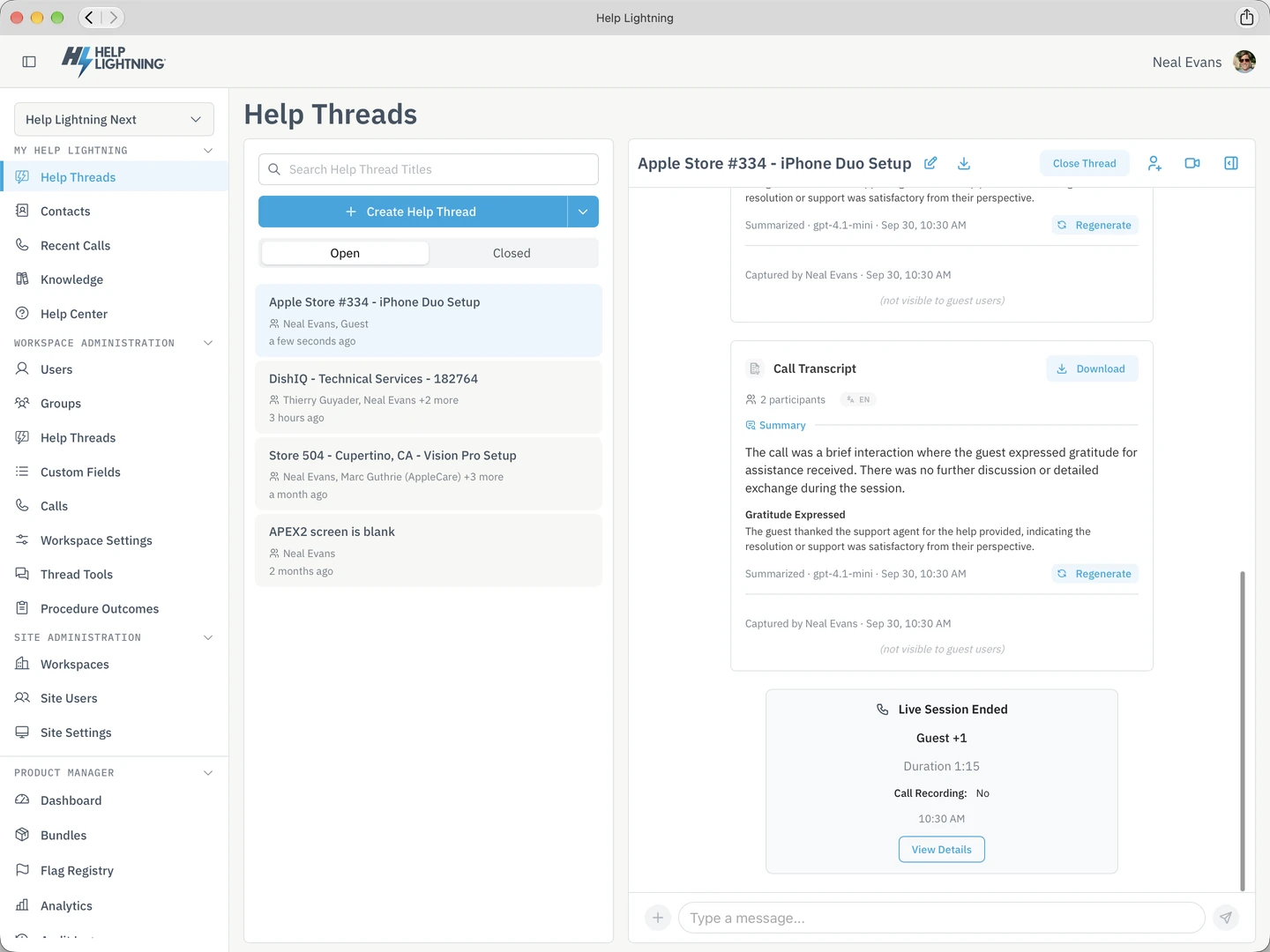
Summarize transcript. Turns a call recording into key topics, discussion highlights, and next steps.
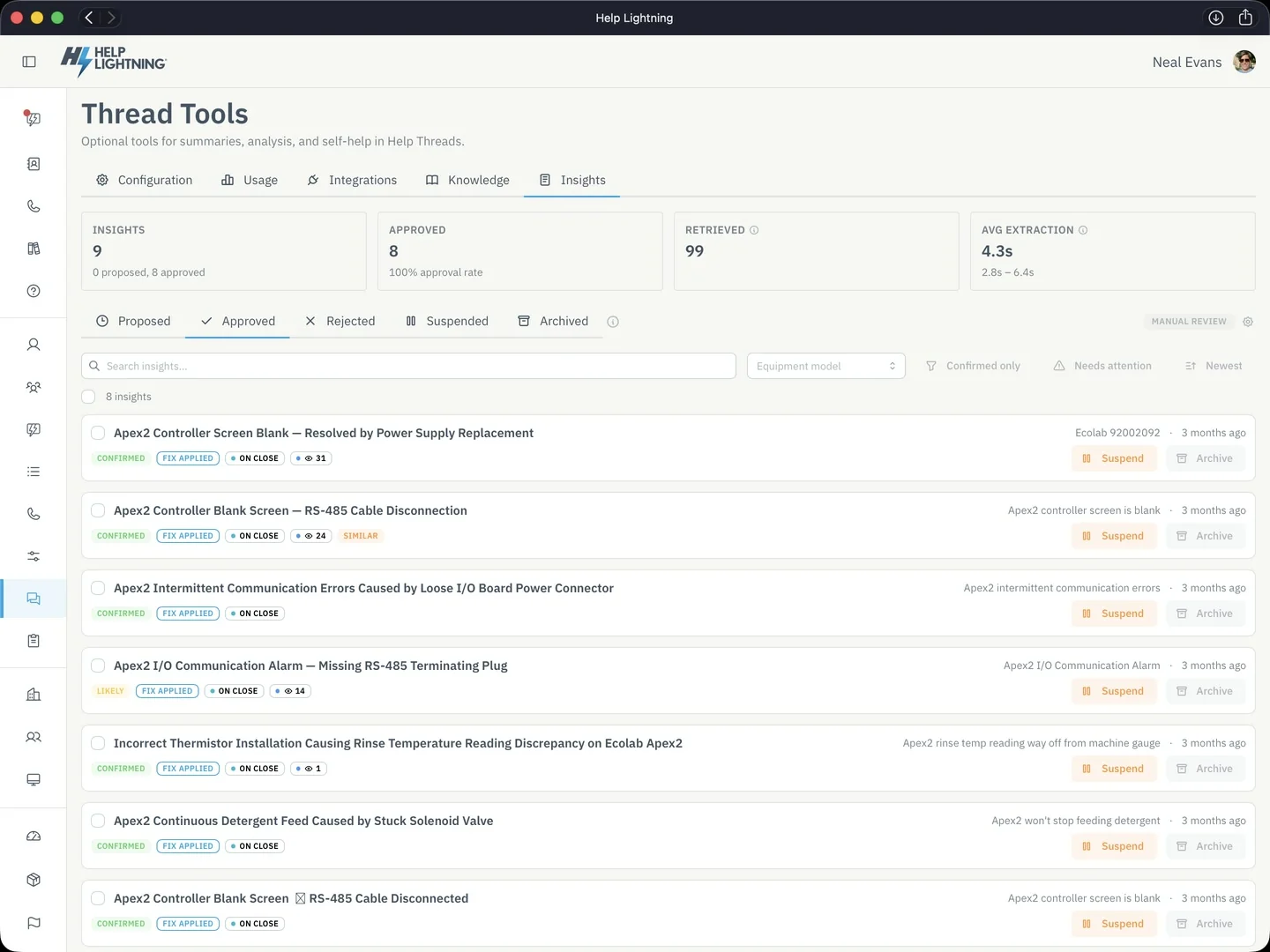
Thread Insights. After a Thread closes, identifies the symptom, the steps taken, and the fix that worked. A person reviews and approves it before it is reused.
Generate procedure. Writes a first draft of a new procedure from an existing PDF, or from scratch.
Self-help. Answers questions from your own knowledge base, manuals, SOPs, and guides, with citations back to the source.
Value Analytics
Collect and visualize your support and resolution metrics, and translate them to cost reduction, revenue, or environmental impact.
Desktop, phone, tablet, and the browser — and the wrist, if they want it there.
iPhone. The Thread in a pocket. Messages, the live view, and what they tried stay with the work.
Desktop. The full Help Lightning experience. Both web and macOS native.
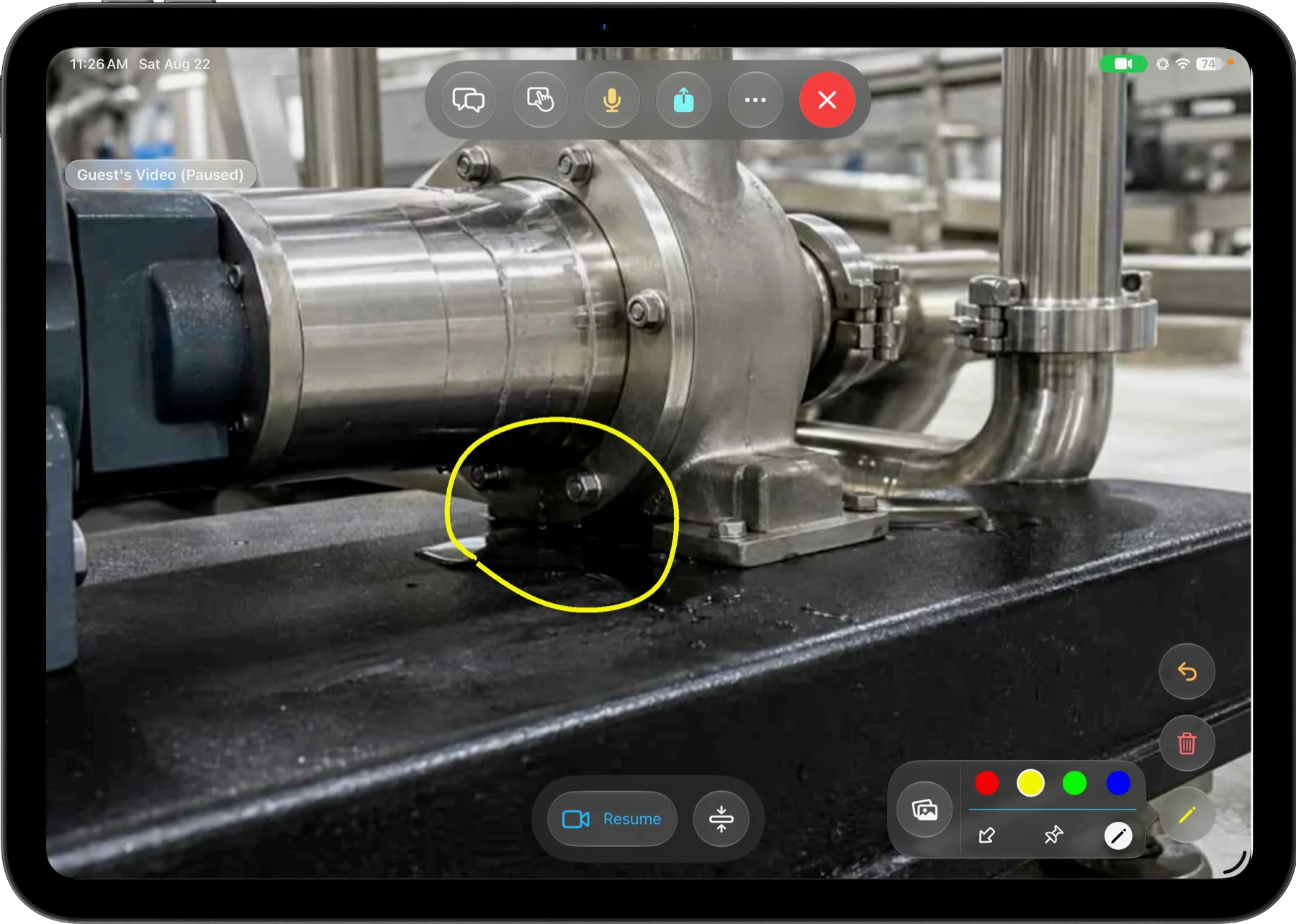
Tablet. Room for the live view, the Procedure, and the people on the Thread.
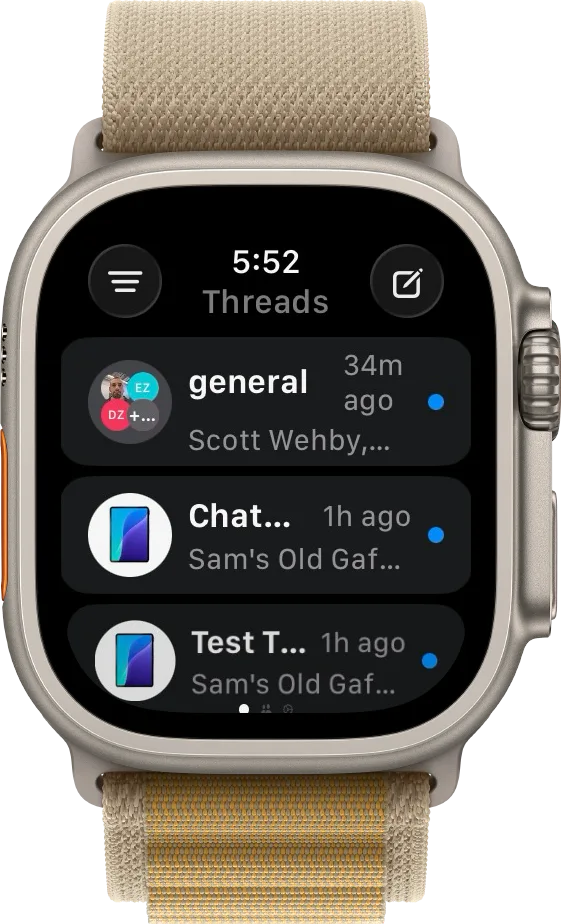
Wrist. See who needs you, and join the Thread from the Apple Watch.
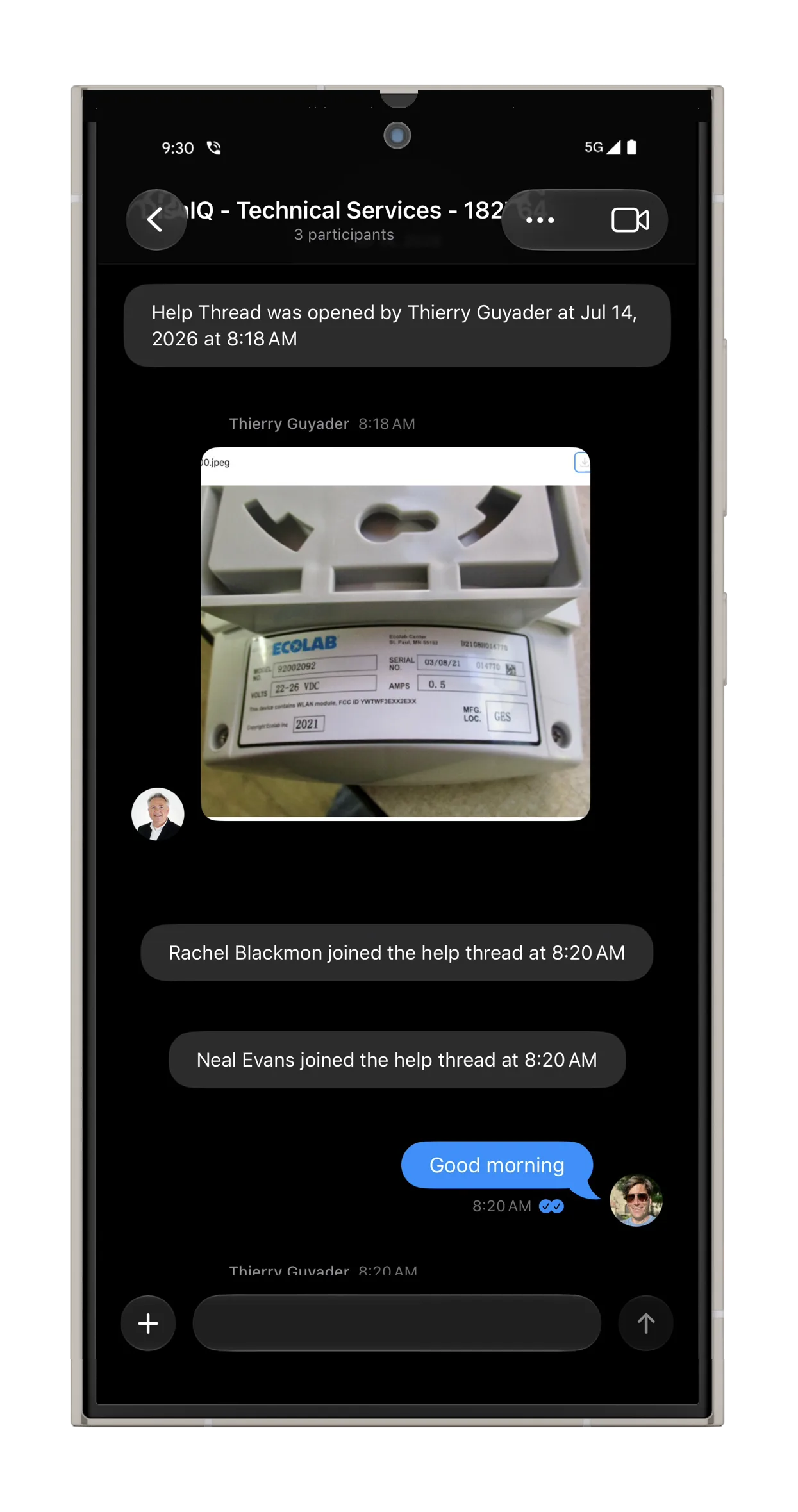
Android. A native app. The Thread, the live view, and the work, on the phone they already carry.
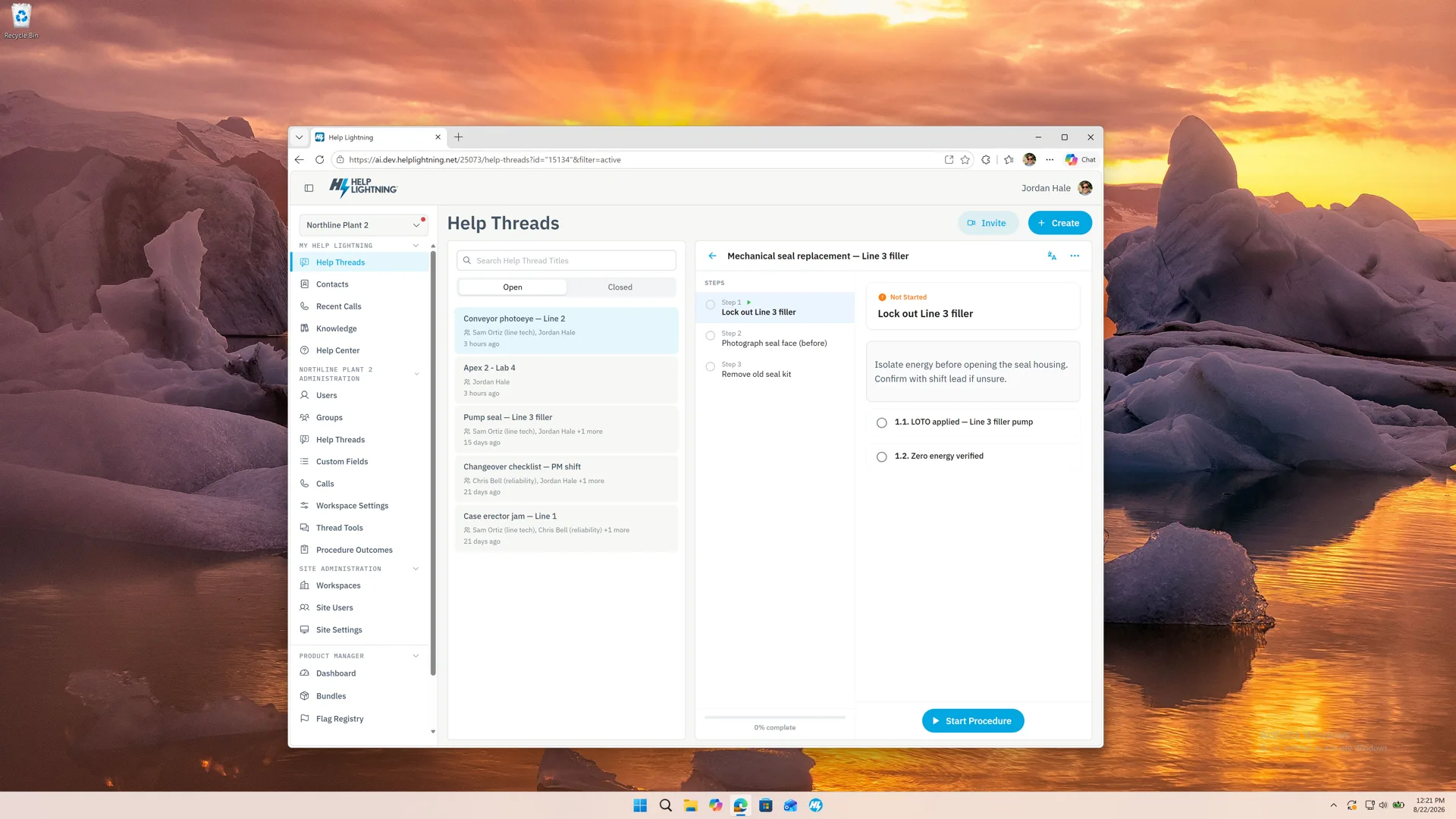
Browser, on a desk. The whole app runs in the browser on Windows or Mac. Edge, Chrome, Safari, or Firefox.
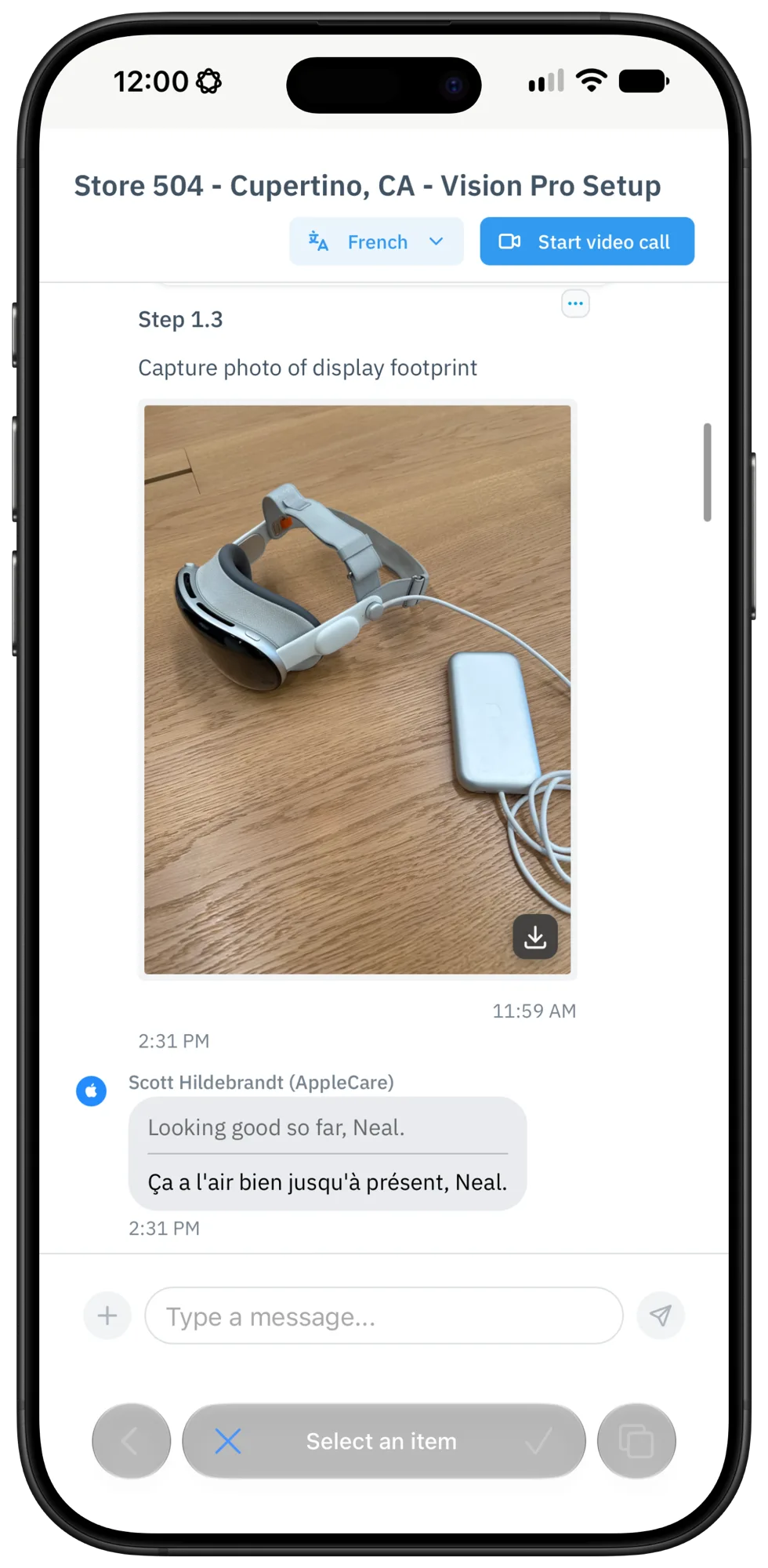
Browser, on a phone. Join from a link on the phone they already have. They do not have to download an app.
Help Lightning connects to the CRM, field service, and collaboration systems your team already uses.



 Teams
Teams
 Dynamics 365
 SharePoint
iPhone Duo
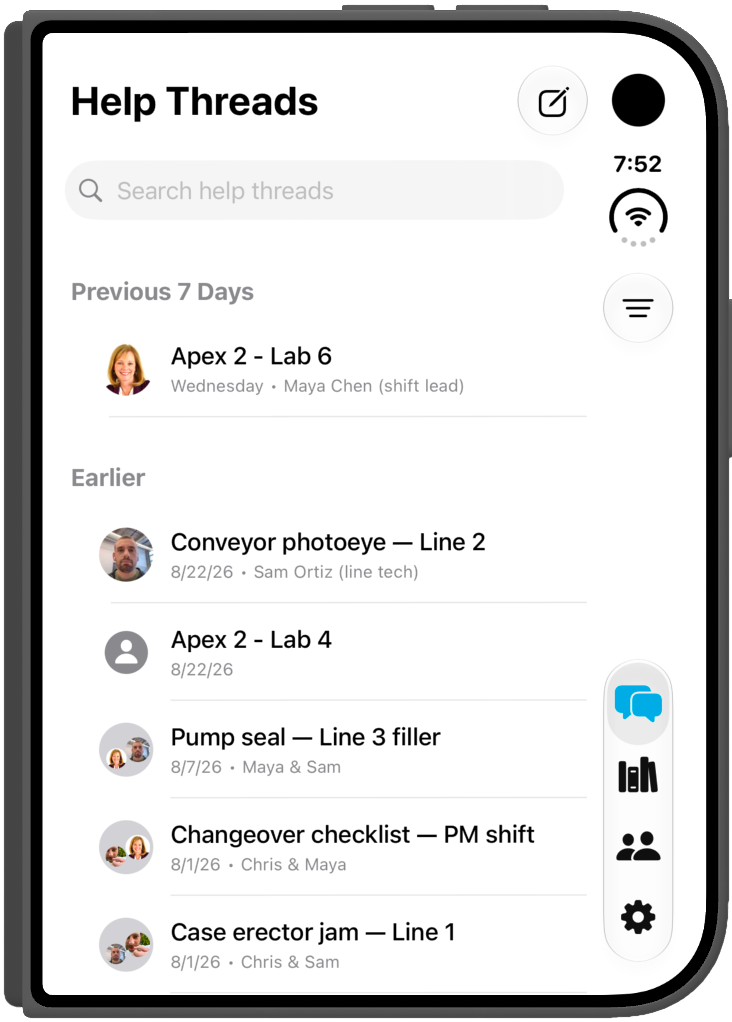
Folded. The Help Threads list.
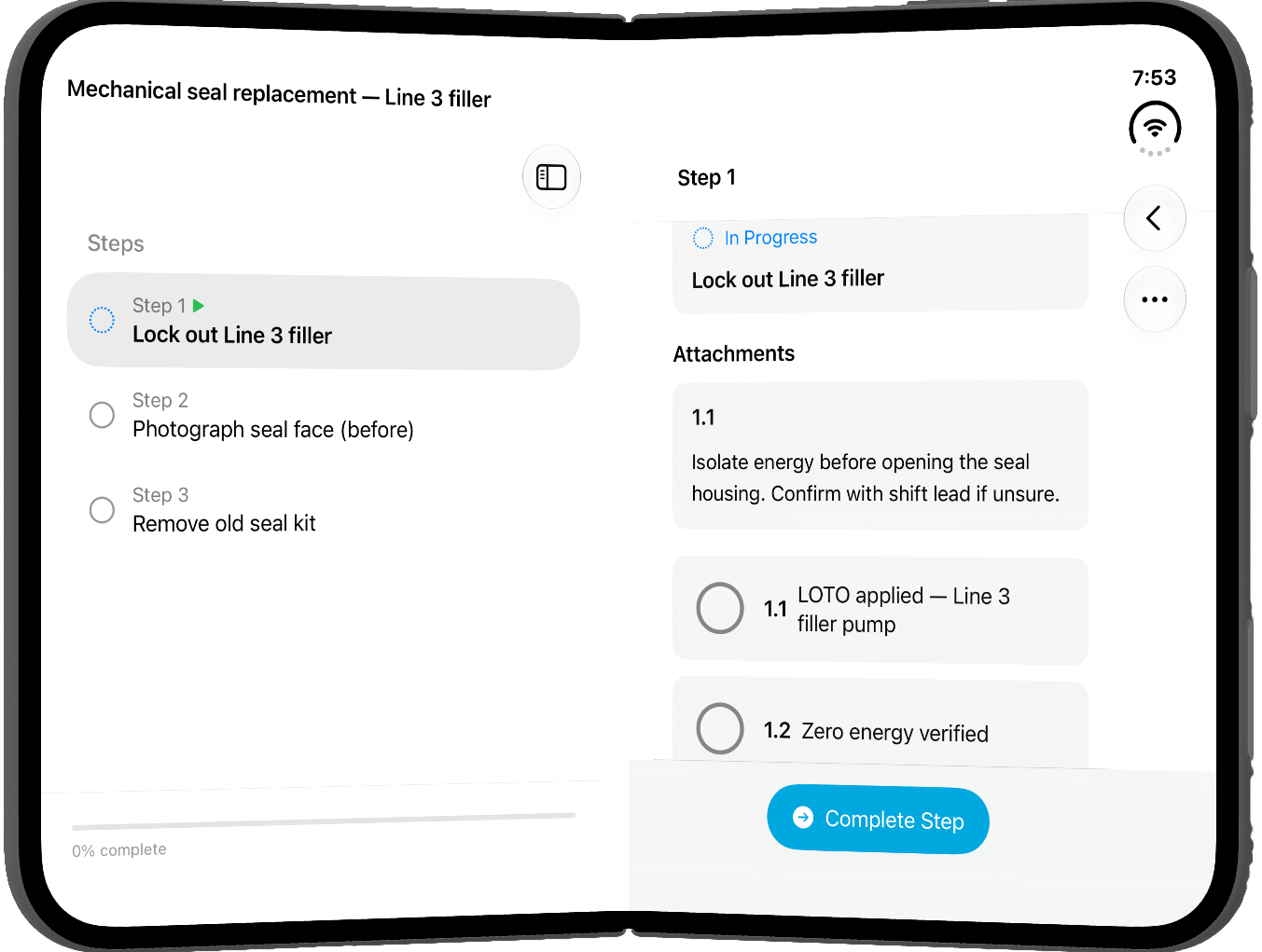
Partway. Steps on the left, this step on the right.
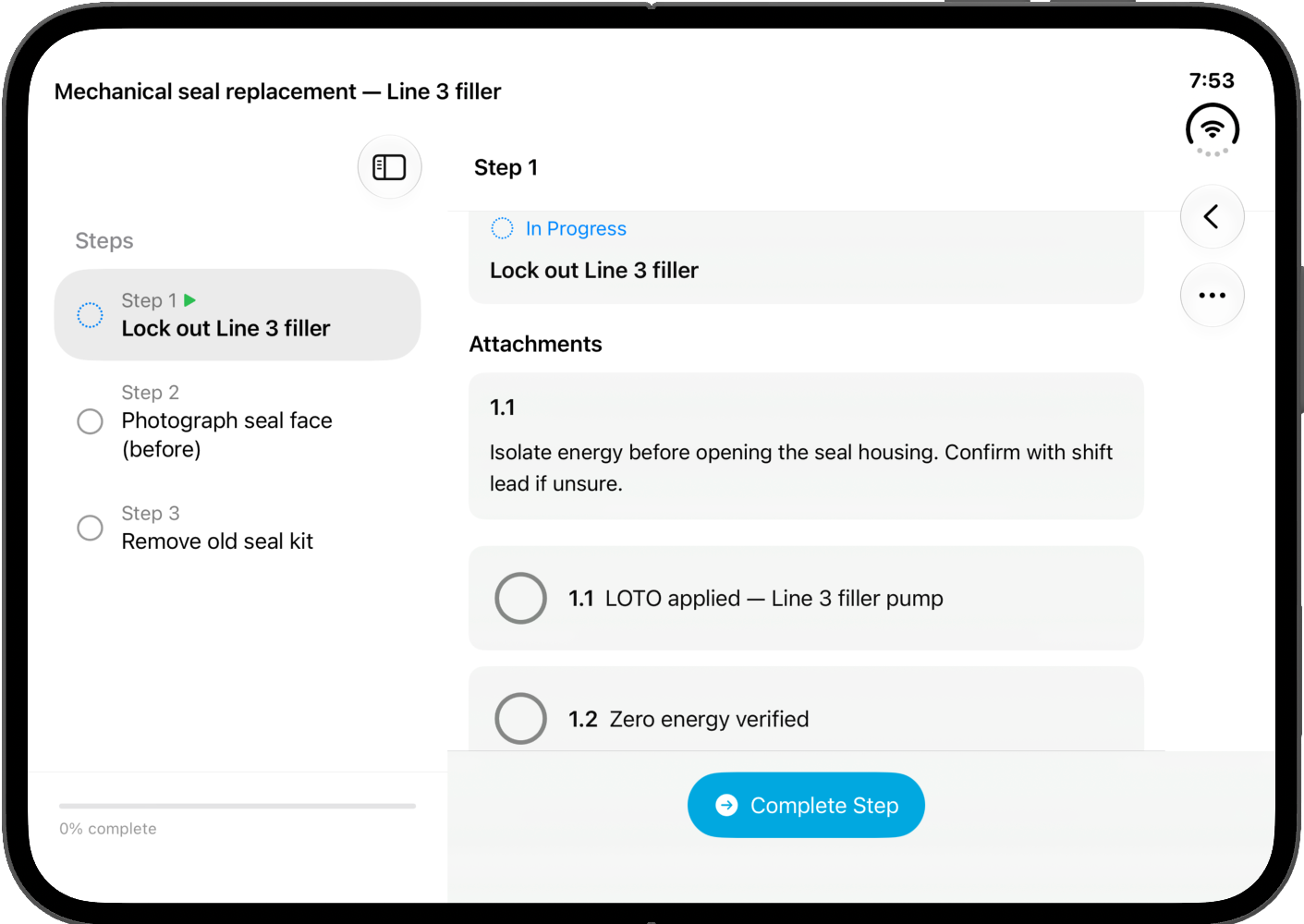
Open. The same Procedure, wider.
Vision Pro
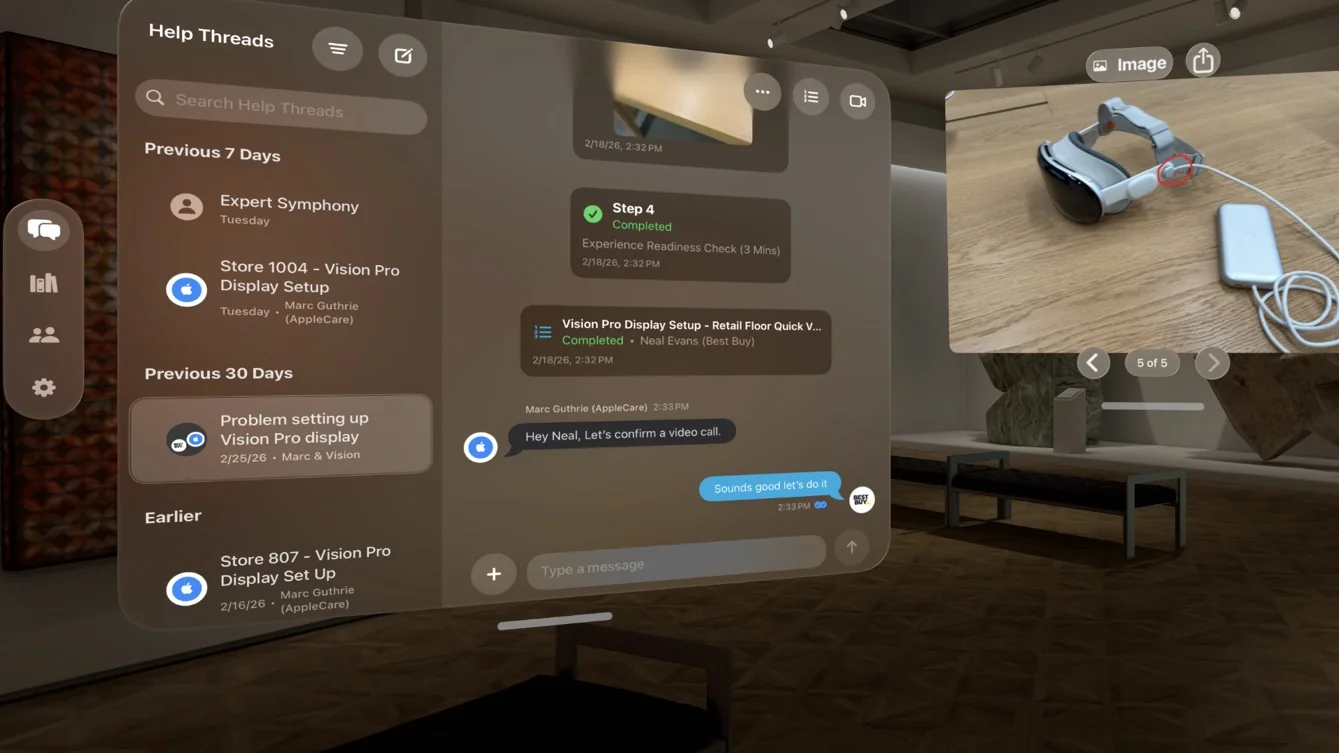
In view. Experts have the Thread, live video, photos, and documentation all within view.
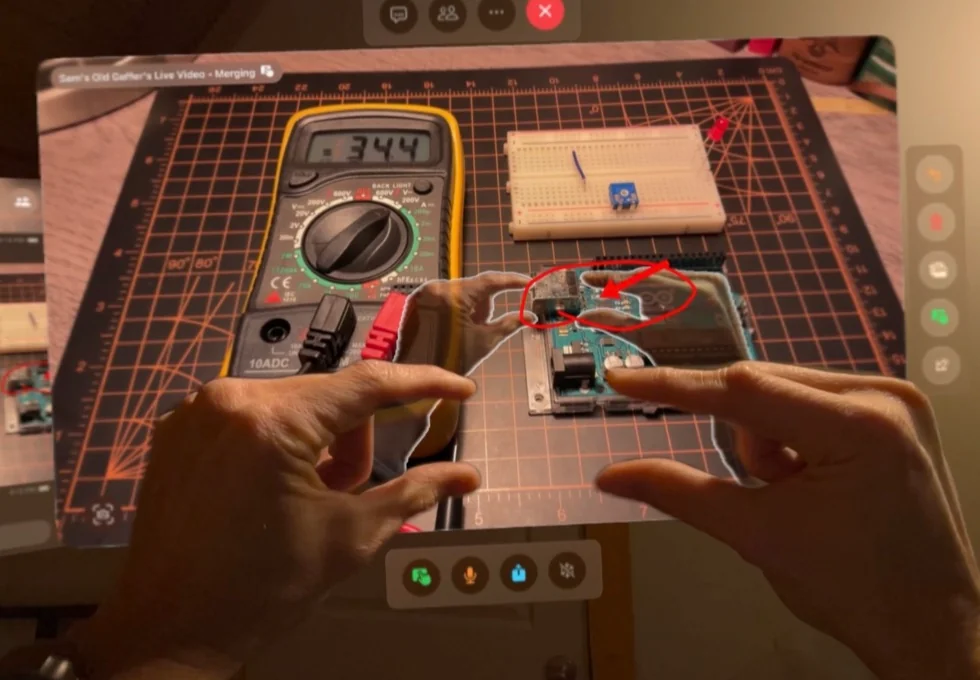
Merged Reality. By placing their hands in front of the Vision Pro, experts can guide the other user by reaching into the video, like working side by side.
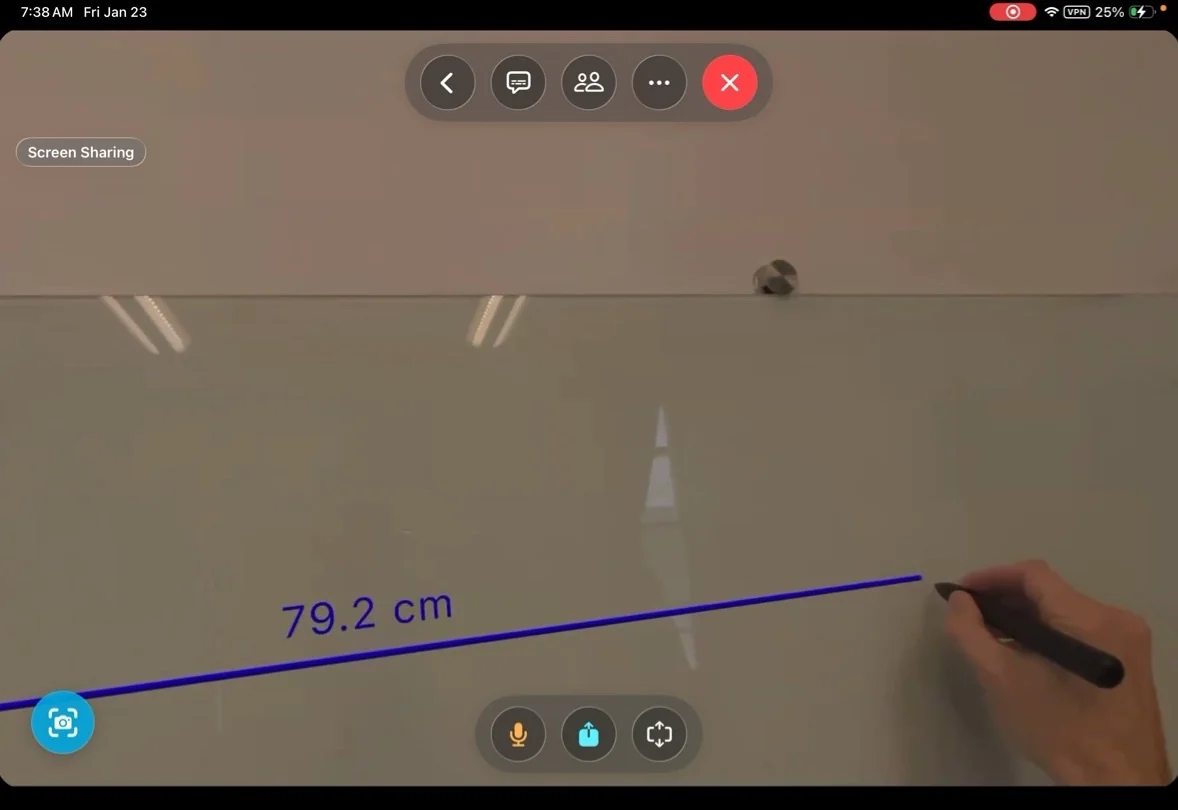
Measure. Works with Vision Pro accessories like the Logitech Muse to capture precise measurements.
We will show you how Help Lightning fits into your existing workflow.